Create Wiki · Trains
Train Station
The Train Station is where every Create railway begins. It is where you assemble a train out of blocks, take it apart again, and where trains following a schedule drive to. A station is placed next to a Train Track and marks one precise point of the line, in one direction.
Quick facts
- Category
- Trains
- Crafting
- 1 Train Casing + 1 Compass = 2 stations (shapeless)
- Placement
- Right-click a track with the station in hand, then place it within 16 blocks
- Role
- Named stop of the network, train assembly and disassembly
- Direction
- A train only stops when arriving in the direction of the marker arrow
- Comparator
- Signal while a train is in the station
- Auto schedule
- A schedule placed in the station is copied to every train stopping there
- Version
- Create 6.0.8 · Minecraft 1.21.1
Crafting table recipe (shapeless)
→ 2 Train Stations
Placing a station
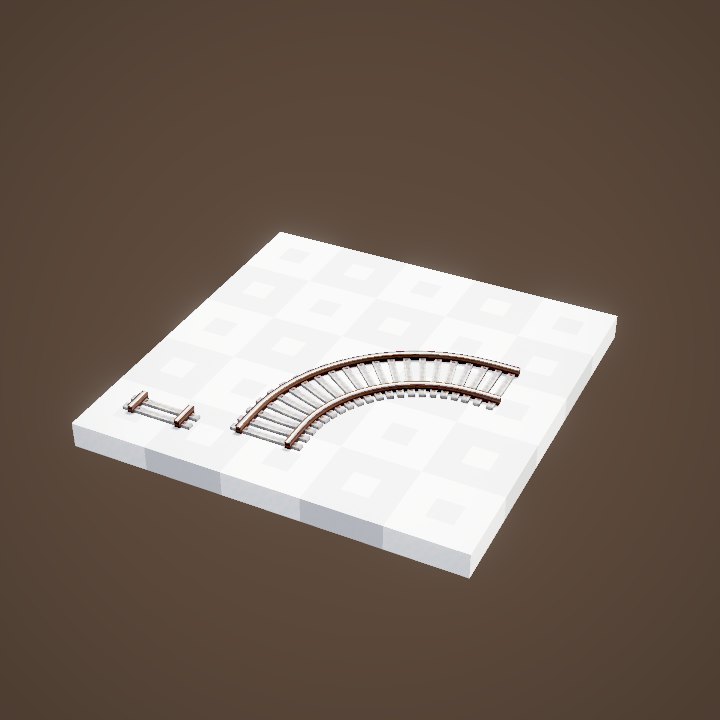
With the station in hand, first right-click a track: the targeted spot is outlined in green. Then place the station anywhere within 16 blocks of that track, on the ground or in a wall. A blue marker appears on the track: that marker, not the block, is the actual stop.
Stops of the network
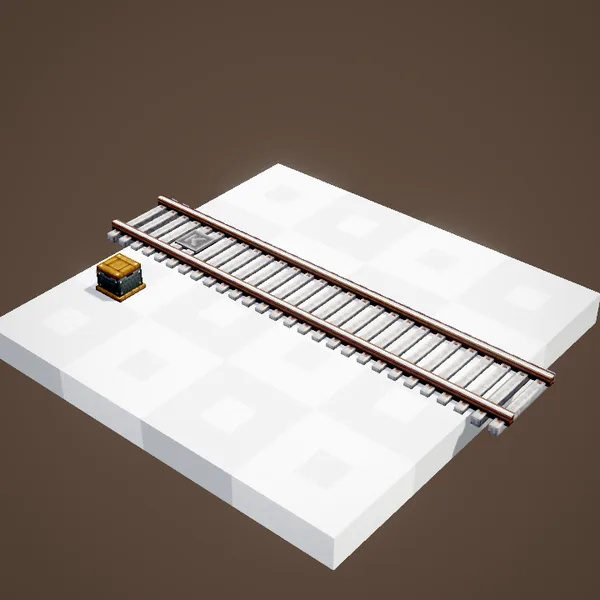
Every station has a name, editable in its interface. That name is what a Train Schedule targets: “go to Mine”, “go to Farm”. Several stations may share a name; the train then heads to the nearest one.
Assembly mode
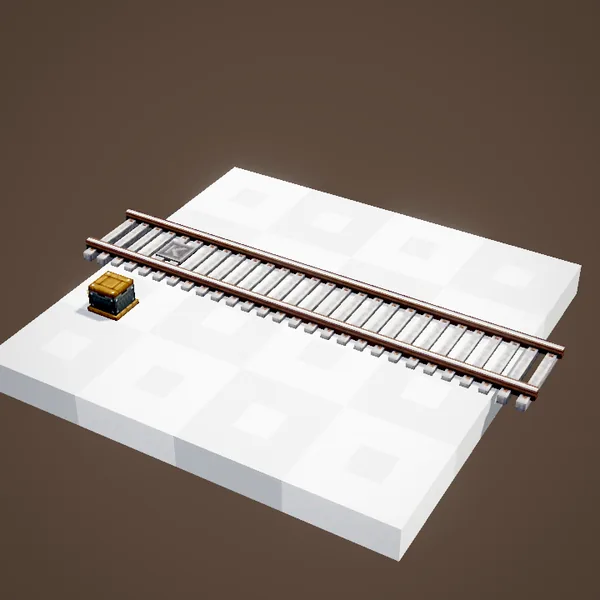
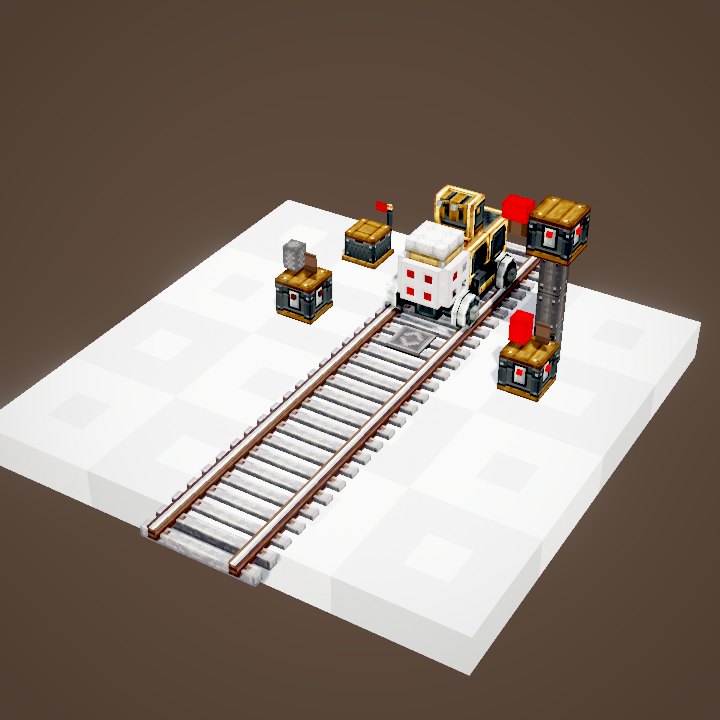
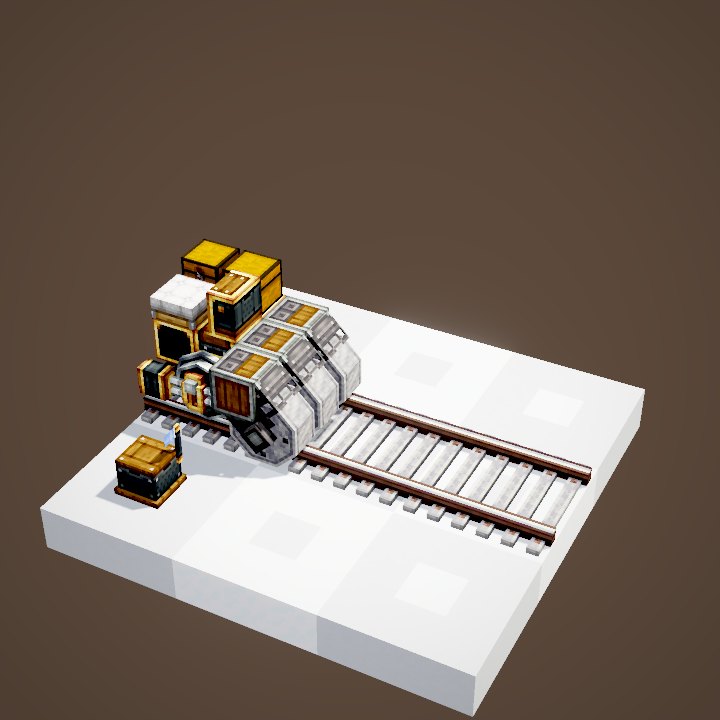
Right-clicking the station opens its interface. The assembly button changes the station's flag and shows on the track where bogeys were found. This is the mode in which you build your train, block by block, on the tracks in front of the station.
A station closed to traffic
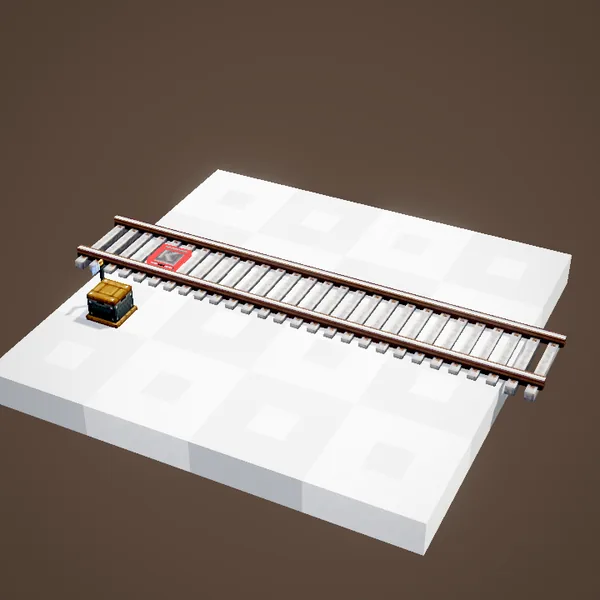
While a station is in assembly mode, no scheduled train stops there: schedules targeting it wait. Remember to leave that mode once the train is done, or a whole line can stay stuck on the server.
Confirm and leave
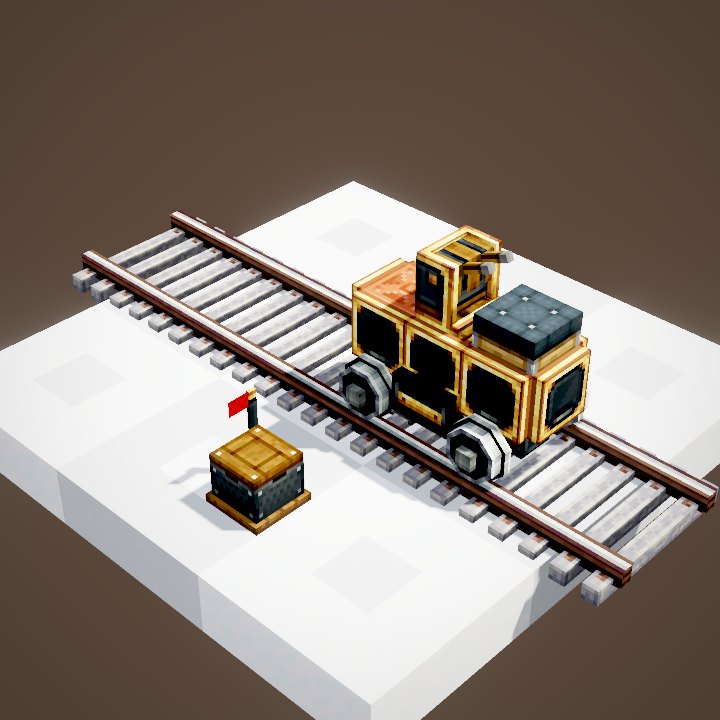
When the train is ready, open the interface again and confirm the assembly: the blocks become a train. The flag stays up while the train is in the station and drops when it leaves. Our animation uses Create's real acceleration, 3 blocks per second squared.
Taking a train apart
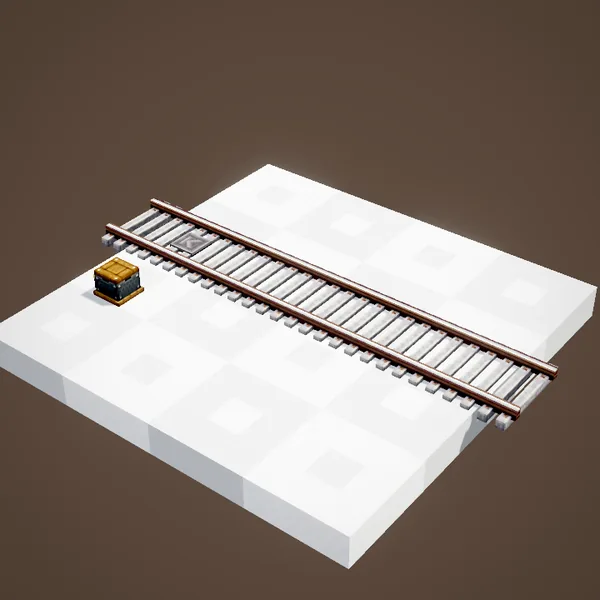
A train only turns back into blocks at a station. Stop it on the marker, open the interface and choose disassembly: every block returns to its place on the track. Anywhere else the train stays an entity, even when standing still.
A marker on the map
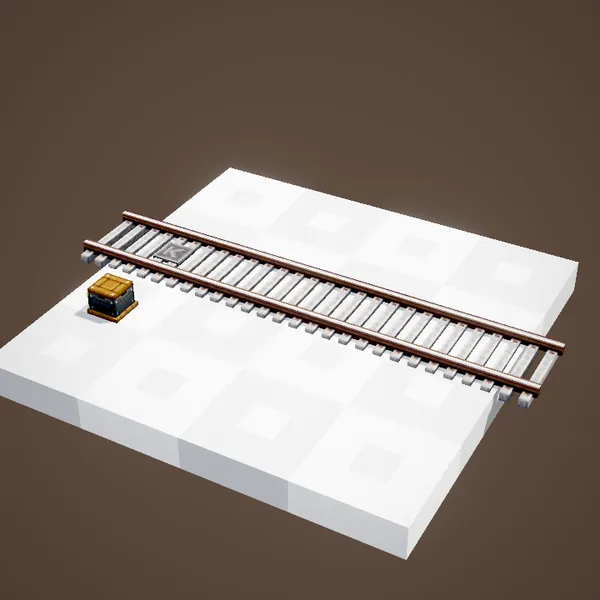
Using a filled map on the station adds a marker with its name. Handy for drawing the plan of a network on a wall of maps, or for finding a distant station again.
Moving a train with the wrench
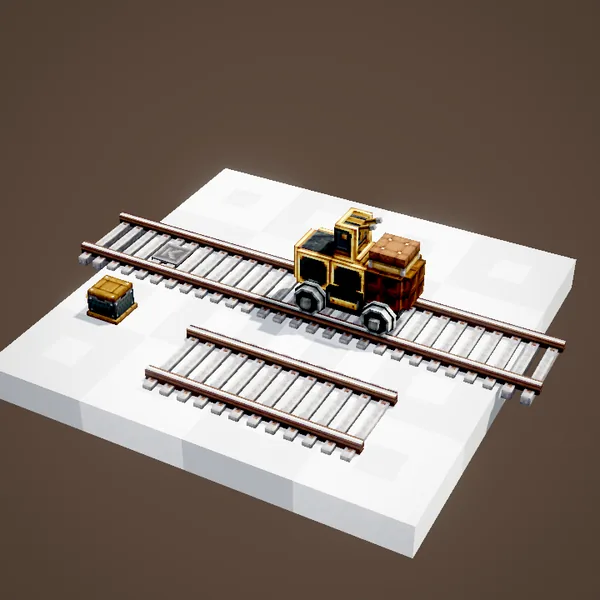
An assembled train can be moved to a nearby track: right-click the train with a Wrench, then the target track. Useful when you assembled on the wrong platform of a multi-track station.
A destination for the driver
A train only drives on its own with a conductor and a schedule. The station is its destination: the train brakes to stop exactly on the marker, then leaves once the schedule's conditions are met.
Knowing when a train is in
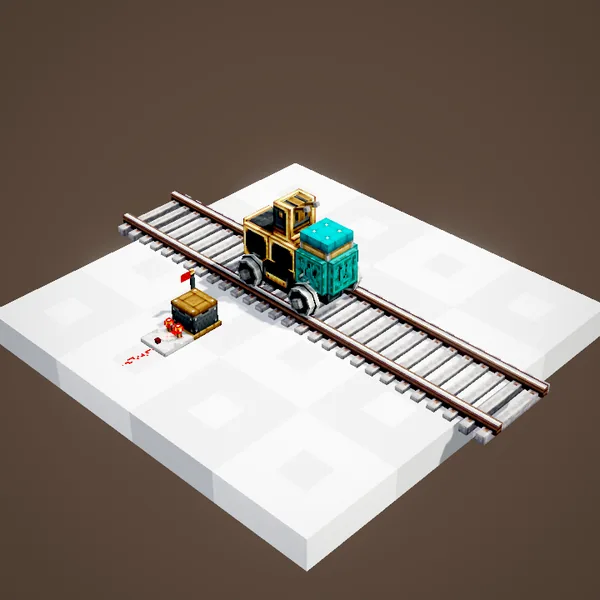
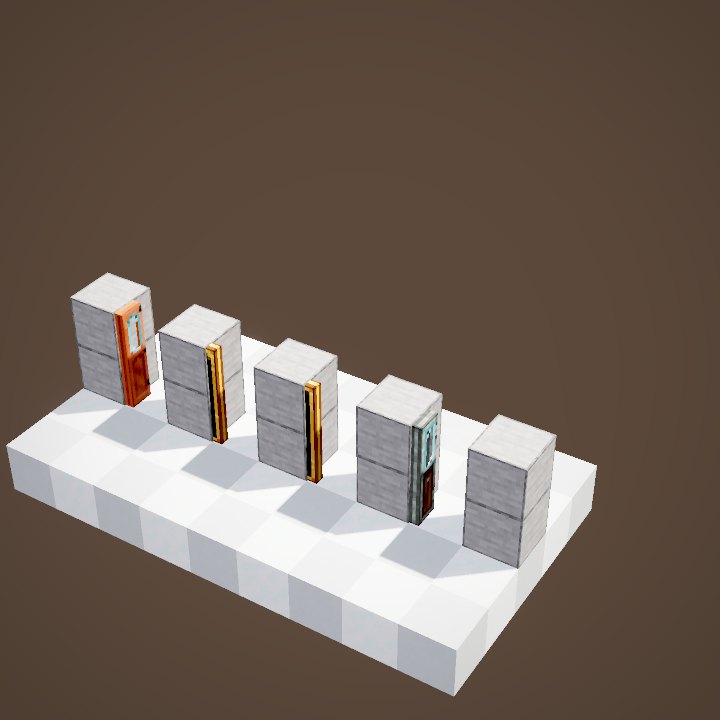
A comparator against the station outputs a signal while a train is present. Use it to open doors, start loading belts or show the arrival with a Display Link.
Direction matters
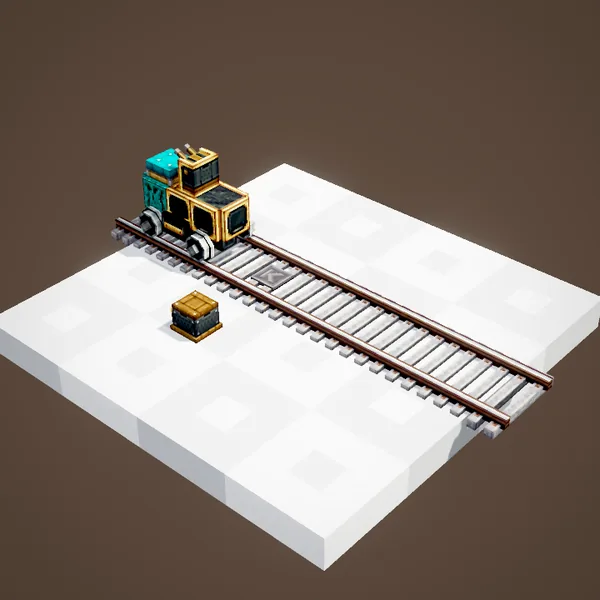
The marker on the track has an arrow: the station only accepts trains arriving that way. A train coming from the other side drives through without stopping. For a terminus served both ways, place two stations, one per direction.
Auto schedule
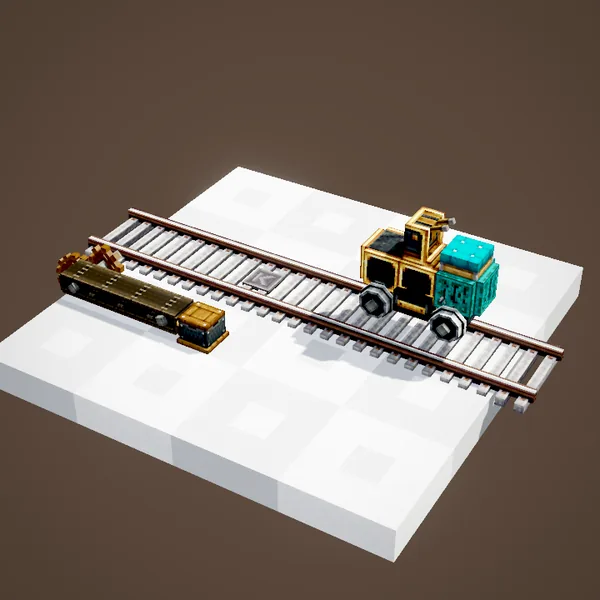
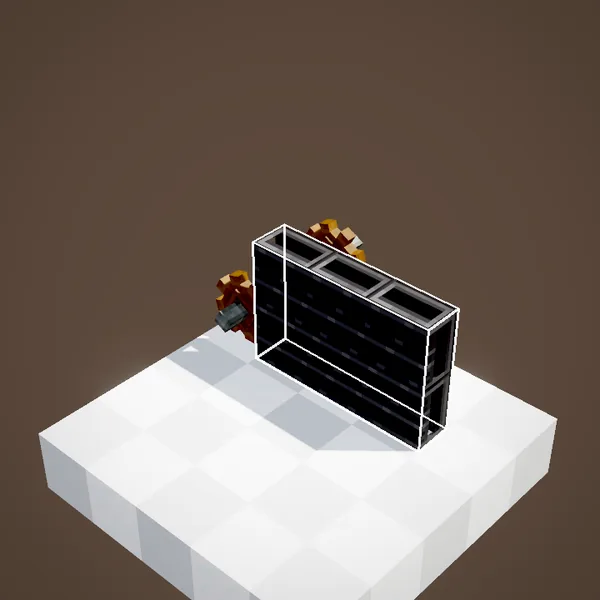
A schedule can be placed in the station itself, for instance by a belt or a funnel. Every train stopping there afterwards receives a copy, so you can reprogram a whole fleet without boarding a single train.
A copy, not a transfer
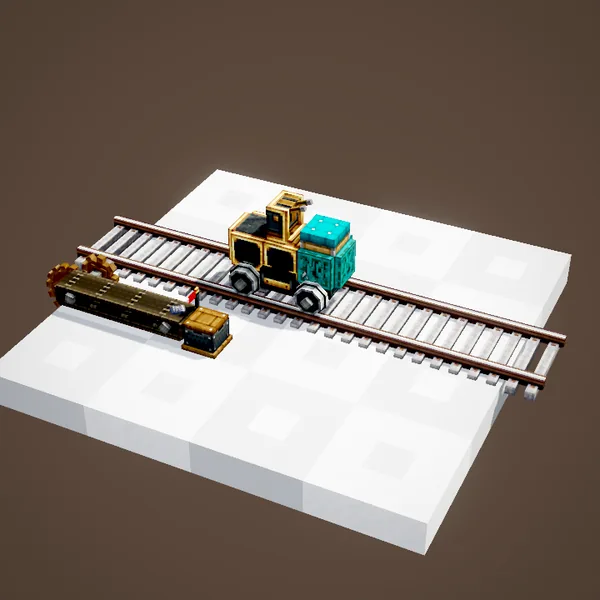
The conductor keeps the copy and leaves at once on its new mission. Unlike a schedule handed over manually, the item stays in the station: it does not leave with the train and serves the next one.
On a server
Give your stations clear, unique names, with your base's name first, so no other player targets them by mistake. Schedule wildcards match every name that starts the same way.
Related pages
Sources for the numbers (Create 6.0.8 code)
- Recipe: crafting/kinetics/track_station.json
- Placement range: TrackTargetingBlockItem (16 blocks, more with a curve)
- Assembly, flag, disassembly: StationBlockEntity (ASSEMBLING, flag.chase 0.1 per tick), StationRenderer
- Auto schedule: StationBlockEntity / ScheduleRuntime.setSchedule (isAutoSchedule)
- Acceleration: CTrains: trainTopSpeed 28, trainTurningTopSpeed 14, poweredTrainTopSpeed 40, poweredTrainTurningTopSpeed 20, trainAcceleration 3
- Simulation: WIKI/train_sim.py (sections, signals, observers and flags recomputed from Create's code)
- Scenes: TrainStationScenes.assembly, autoSchedule (parrot conductors not drawn)
Original texts and animations by Create France, rendered from the mod's Ponder scenes. Create is a mod by the Create Team, not affiliated with Create France.