Create Wiki · Logistics
Mechanical Belt
The Mechanical Belt does two jobs at once: it transmits rotation from one shaft to another and it carries the items placed on it. It is the backbone of nearly every Create factory. Here is how to place it, in which directions, and how fast it moves your items.
Quick facts
- Category
- Logistics
- Stress
- None (only the machines connected to it use stress)
- Length
- Up to 20 blocks (maxBeltLength server setting)
- Item speed
- RPM ÷ 24 blocks per second (1.33 blocks/s at 32 RPM)
- Spacing
- 1 block between two items
- Casing
- Andesite or brass, right-click on each segment, removed with the Wrench; not used up
- Version
- Create 6.0.8 · Minecraft 1.21.1
Crafting table recipe
→ 1 Mechanical Belt (a single one covers the whole length)
Connecting two shafts
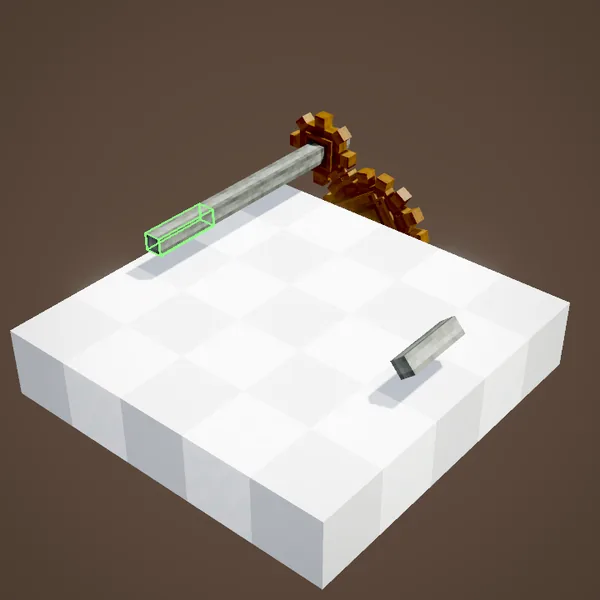
Place two parallel shafts, right-click the first one with a mechanical belt in hand, then right-click the second. The belt appears between them and drives everything connected to it. One item is enough, whatever the length: six dried kelp for 20 blocks of belt is a great deal.
The belt itself uses no stress. It copies the rotation: all its shafts spin at the same speed and in the same direction.
Cancelling a wrong selection
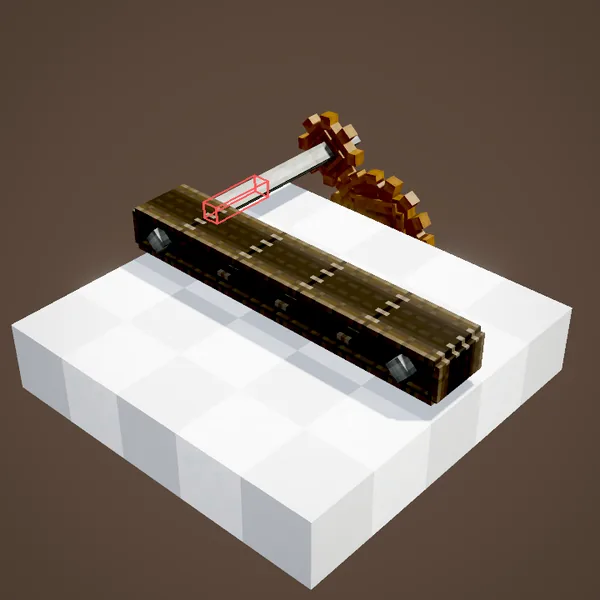
Clicked the wrong shaft? Sneak and right-click to forget the first selection, then start over. The selection also clears on its own if the first shaft disappears or ends up too far away.
Adding or removing shafts on the belt
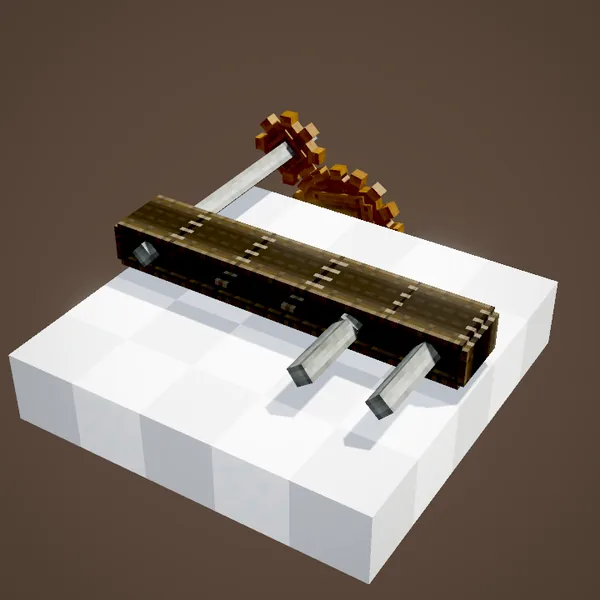
Right-clicking a belt segment with a shaft adds a pulley there. That way you can take rotation from, or feed it into, the middle of the belt, for example to power a press or a fan along the way. To remove an added pulley, use the wrench on that segment.
Dyeing and casing the belt
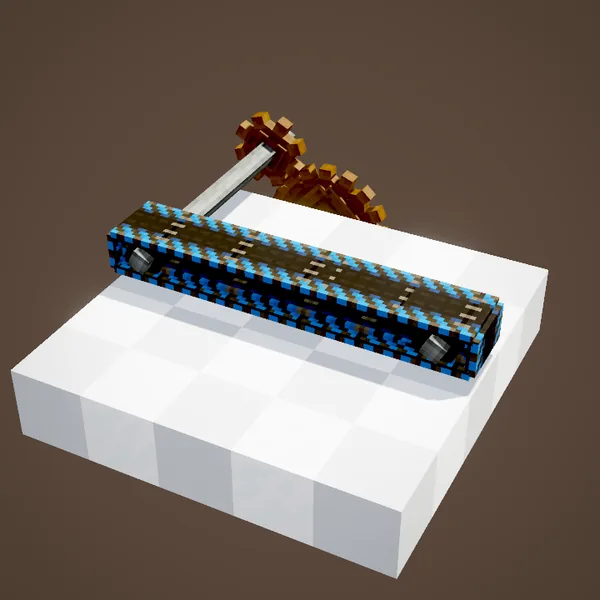
Right-clicking with a dye colours the whole belt, so you can tell your lines apart at a glance (ores, food, waste…). A water bucket or a water bottle removes the colour. You can also cover the belt with Andesite or Brass Casing for a cleaner look; it keeps transmitting rotation.
Encasing the belt
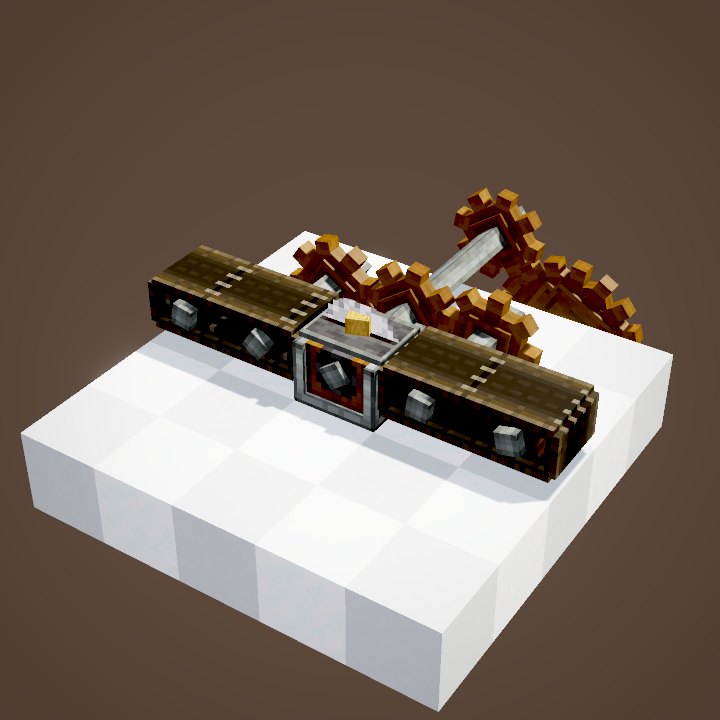
Right-clicking a belt segment with Andesite Casing or Brass Casing covers it: the sides vanish behind the casing while the top keeps rolling. Each segment is cased on its own, so you can hide only the visible parts of a line, sloped or flat, and switch from one casing to the other by clicking with the second one. The belt keeps all its functions: it still passes rotation along and carries items as before. The Wrench strips the casing from a segment. The casing item is not used up when you apply it, and nothing is handed back when you remove it.
The possible orientations
A belt can't go in just any direction. Both shafts must share the same axis, and the belt runs at a right angle to that axis:
- horizontally, in a straight line;
- diagonally, at a slope of exactly 45° (as many blocks up as across);
- vertically, to move items up or down;
- between two vertical shafts, horizontally only, with the belt standing on its edge.
It can be at most 20 blocks long by default (less on a diagonal, since the actual distance is what counts).
Item speed and spacing
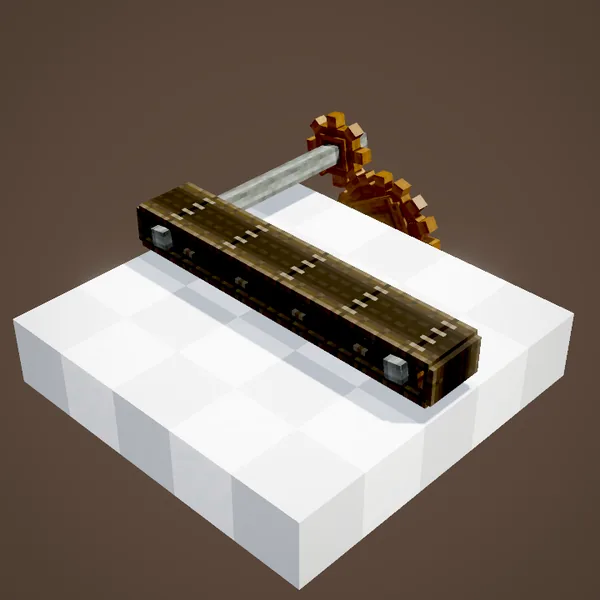
Items move at the rotation speed divided by 24, in blocks per second: 0.67 blocks/s at 16 RPM, 1.33 blocks/s at 32, 2.67 at 64 and almost 11 blocks/s at 256 RPM. They always keep one block of spacing, so a full belt carries at best one stack per block. For more throughput, put whole stacks on it (with a funnel or a Mechanical Arm) rather than single items.
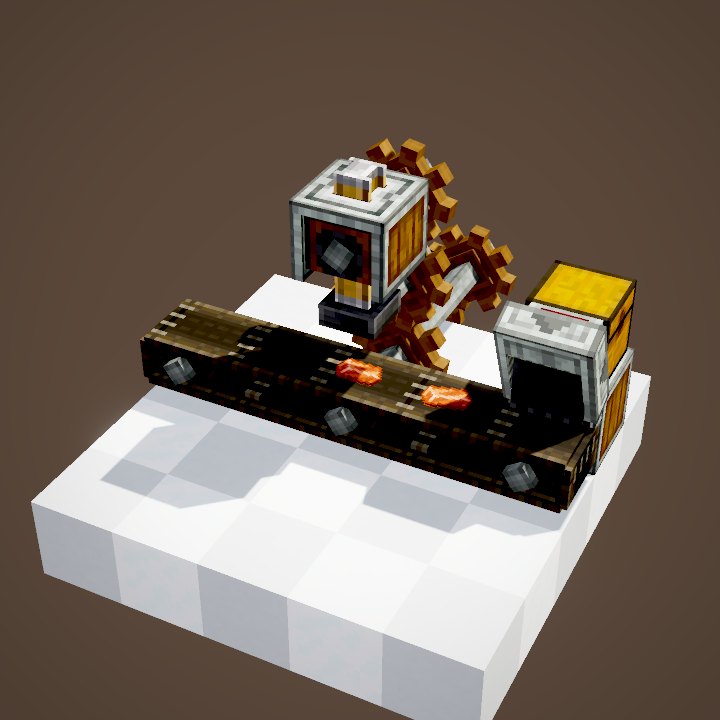
At the end of the belt, items stop if nothing picks them up: place a funnel, a depot, a chest or another belt there.
What the belt carries, and taking an item back
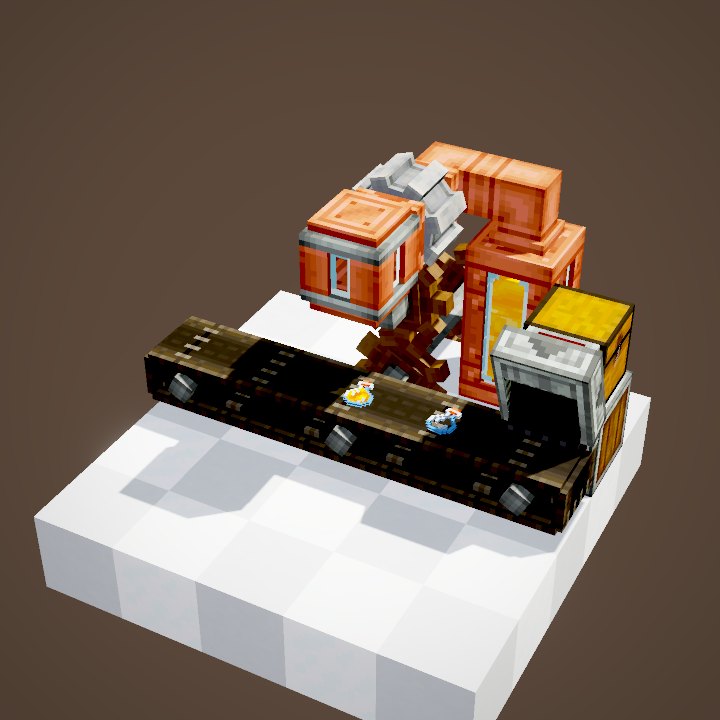
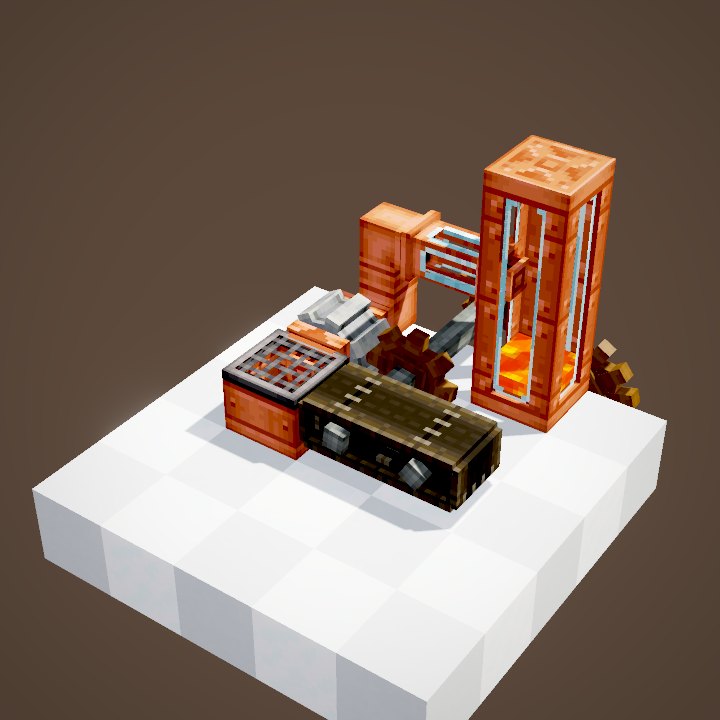
A running belt moves everything resting on it: dropped items, but also mobs and players, at the same speed as the items. The code has two exceptions: a sneaking player is not carried, and a mob standing on a belt gets a Slowness effect for as long as it stays there. In the loop, copper blocks dropped above the belt land on it and travel along; the parrot riding with them in the Ponder scene is not drawn.
To take an item back, right-click the segment it sits on, empty-handed: everything on that belt block goes into your inventory.
Common mistakes
- The belt won't place: the shafts are on different axes or not aligned, the diagonal isn't 45°, or the distance is too long.
- Block in the way: only air, replaceable blocks and shafts on the same axis are allowed between the two ends.
- Opposite rotation directions: if the two shafts already spin in opposite directions, placement fails.
- Items don't pass under a machine: a Mechanical Press holds them on purpose while it processes them.
Related pages
Sources for the numbers (Create 6.0.8 code)
- Stress: AllBlocks.java, BELT, CStress.setNoImpact()
- Placement: BeltConnectorItem.canConnect (same axis, no offset along the axis, a single pair of components equal in absolute value, no diagonal between vertical shafts, compatible rotation directions, free cells or shafts on the same axis); one item used per belt (shrink(1))
- Length: CKinetics.maxBeltLength = 20 (minimum 5)
- Speed: BeltBlockEntity.getBeltMovementSpeed = speed / 480 blocks per tick (× 20 ticks/s)
- Spacing: BeltInventory (spacing = 1)
- Dyeing: BeltBlock.useItemOn (dyes, water)
- Recipe: data/create/recipe/crafting/kinetics/belt_connector.json
- Carrying entities: BeltMovementHandler.canBeTransported (sneaking players excluded) and transportEntity (Slowness for mobs)
- Taking items back: BeltBlock.useItemOn (empty hand: items on the segment handed to the player)
- Casing: BeltBlock.useItemOn (Brass / Andesite Casing, item not used up), BeltBlock.onWrenched (removal), BeltBlockEntity.setCasingType
- Scenes: BeltScenes.beltConnector, directions, transport and beltsCanBeEncased
Original texts and animations by Create France, rendered from the mod's Ponder scenes. Create is a mod by the Create Team, not affiliated with Create France.